
How to Create a LinkedIn Carousel Post (Step by Step)
A LinkedIn carousel post is one of the best ways to share ideas and get more reach on LinkedIn. People swipe through your slides, spend more time on your post, and often save it for later. The good news: you do not need a designer. This guide shows you how to create a LinkedIn carousel post step by step.


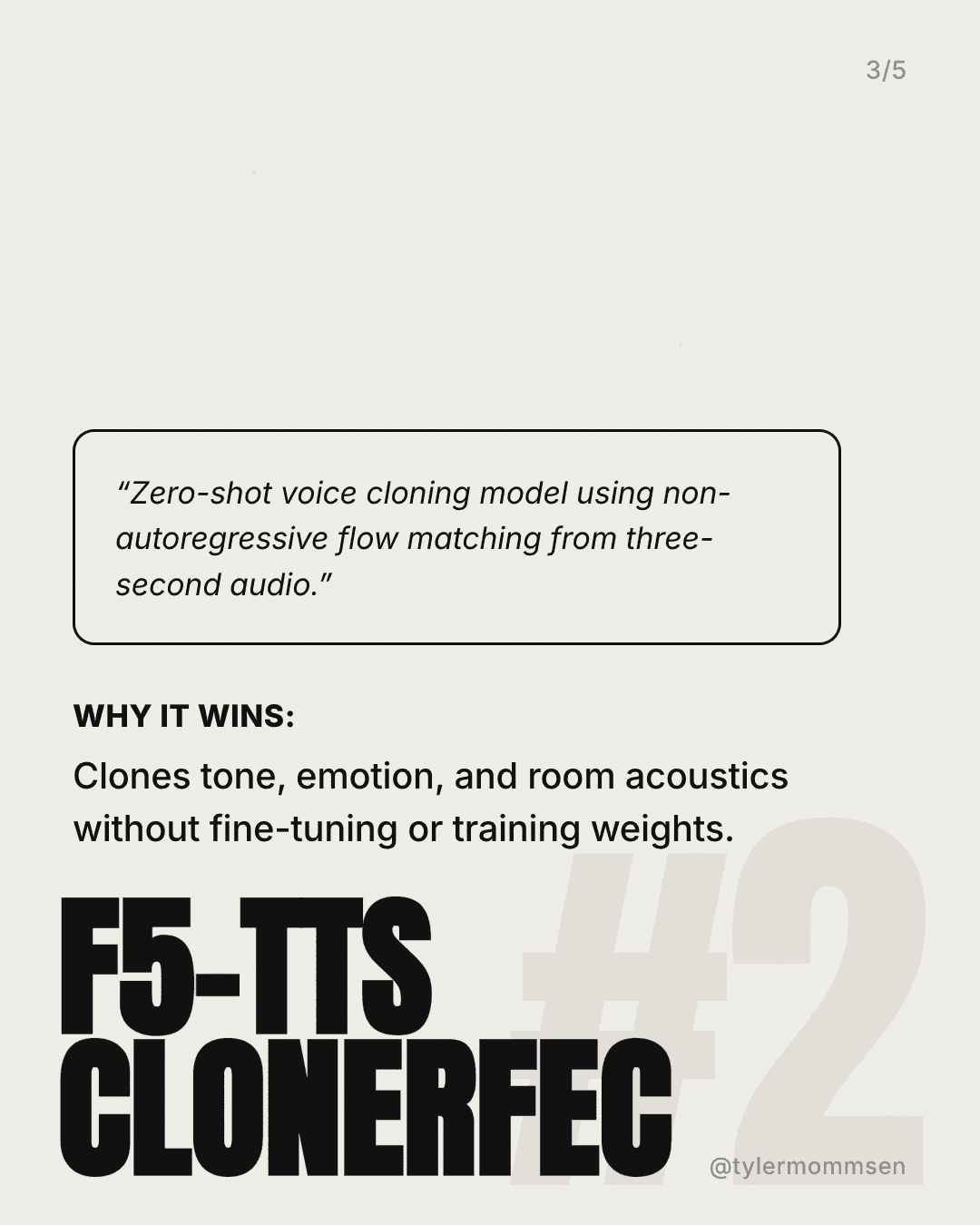
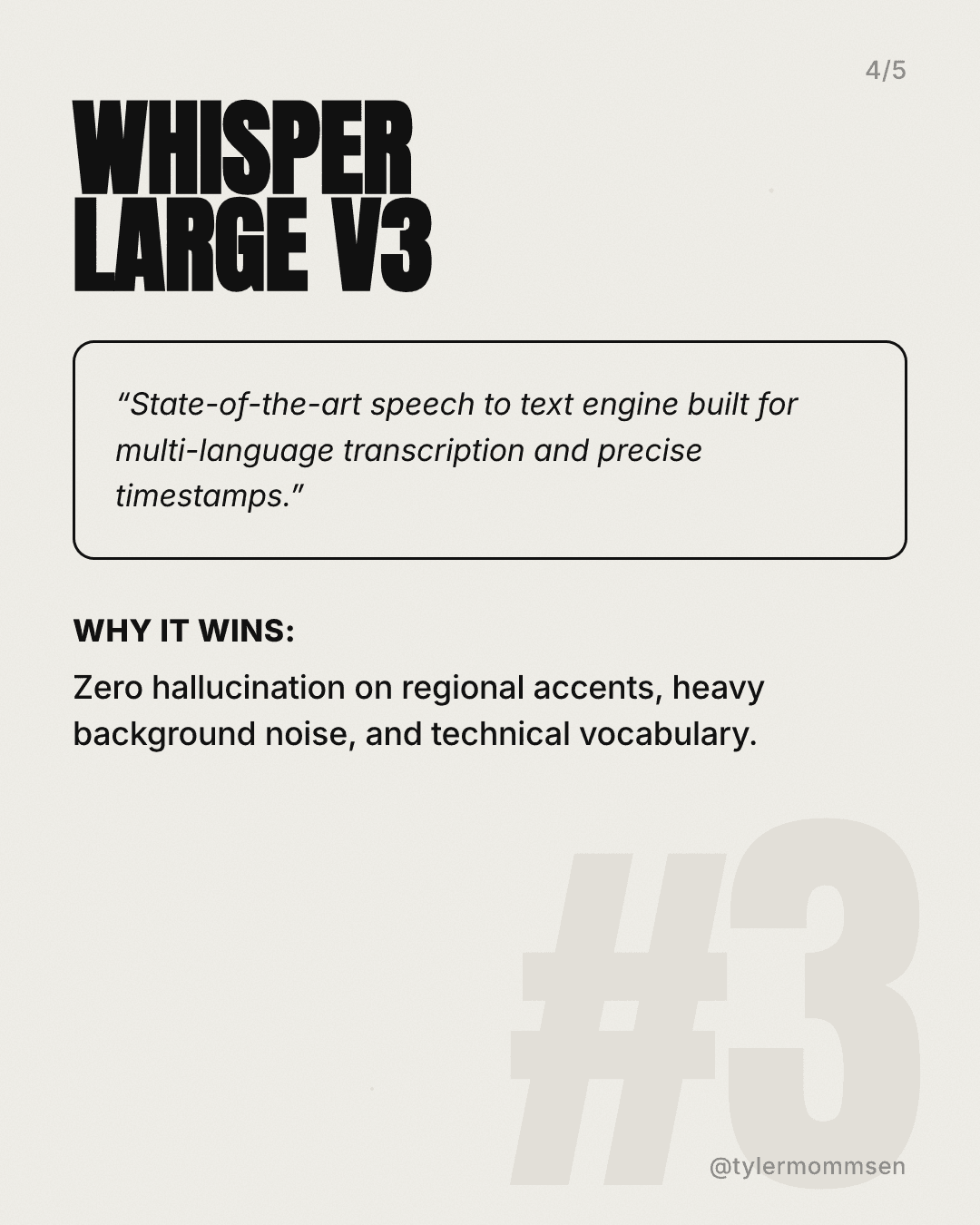
What Is a LinkedIn Carousel Post?
A LinkedIn carousel is a post with many slides that people flip through. On LinkedIn, it is a PDF document. You upload one PDF, and LinkedIn shows each page as a slide.
Carousels work well because they let you teach one idea in small steps. They are easy to read on a phone, and people like to save them.
What You Need Before You Start
- One clear idea. Example: "5 mistakes that make your resume hard to read."
- A carousel maker. You can use Slidecraft, Canva, or a slide tool.
- The right size. Use 1080×1350 px (4:5). It fills more of the phone screen.
- A PDF export. LinkedIn needs your slides in one PDF file.
8 Steps to Create a LinkedIn Carousel Post
Step 1: Pick one topic
Choose a topic your readers care about. Good carousels solve one small problem. For example: "How to write a LinkedIn headline that gets views."
Step 2: Write a strong first slide
Slide 1 is your hook. It must make people want to swipe. Use a number, a bold claim, or a question. Example: "7 LinkedIn mistakes that kill your reach."
Step 3: Plan 6 to 10 slides
Write one point per slide. Slide 1 is the hook. The middle slides give the value. The last slide asks for one action. Most LinkedIn carousels work best with 6 to 10 slides.
Step 4: Keep the words short
Write fewer than 30 words on each slide. Use short lines. If a slide looks like a paragraph, split it into two slides.
Step 5: Design your slides
Use 1080×1350 px. Pick one or two fonts and two or three colors. Make the text big. Keep the same layout on every slide so the deck feels clean. With Slidecraft, you can skip this step: type your idea and it builds the full designed carousel in about 90 seconds.
Step 6: Add a call to action
End with one clear next step: follow, comment, save, or share. Do not ask for many things at once.
Step 7: Export as a PDF
Export all slides as one PDF in the right order. Check that the text is sharp and nothing is cut off.
Step 8: Upload to LinkedIn
Click Start a post, choose Add a document, and upload your PDF. Add a short title, write a caption that repeats the promise from slide 1, and post.
A Simple Slide Structure You Can Copy
Here is a layout that works for most topics:
- Slide 1 – Hook: A clear promise or bold claim.
- Slide 2 – Problem: Why this matters to the reader.
- Slides 3 to 7 – Steps or tips: One point per slide, with a short example.
- Slide 8 – Recap: A quick summary of the main points.
- Slide 9 – Call to action: Ask people to follow, save, or comment.
You can make it shorter or longer. Always keep one idea per slide.
Design Tips for LinkedIn Carousels
- Use big text. Most people read on a phone. Headlines should be at least 60 px.
- Use strong contrast. Dark text on a light background, or light text on a dark one.
- Leave space. Keep text at least 60 px from the edges.
- Stay consistent. Same fonts, colors, and spacing on every slide.
- Add a small cue. An arrow or the word "swipe" on slide 1 helps people move on.
- Add your name or logo. Put it small on the first or last slide so people know who made it.
Common Mistakes to Avoid
- A weak first slide that does not make people curious.
- Too much text on each slide.
- Using many fonts and colors.
- Making the carousel too long. Most people drop off after 10 to 12 slides.
- Forgetting the call to action.
- Posting a landscape deck that looks tiny on a phone.
How to Create a LinkedIn Carousel Faster
Building slides by hand can take 30 to 50 minutes. An AI carousel maker cuts that to minutes.
With Slidecraft, you type one idea. It writes the hook, builds the slides, applies clean type, and exports a 1080×1350 PDF made for LinkedIn. You can edit any slide before you post. You can also paste an Instagram post link to copy a look you like.
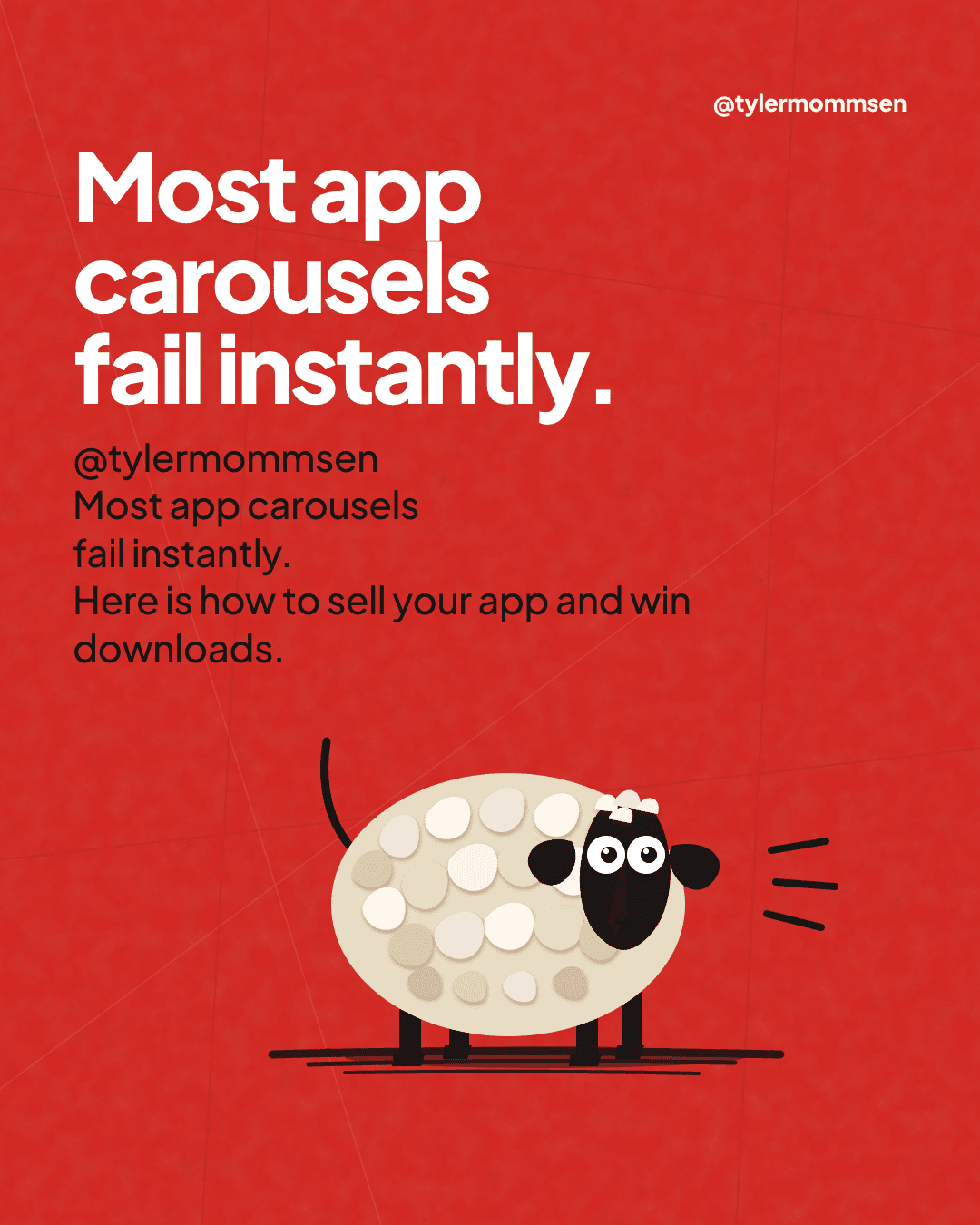
See How Slidecraft Generates a 7-Slide Carousel From One Prompt
No blank canvas. No manual kerning. Watch raw notes transform into publish-ready slides with viral hook psychology.
No credit card required · Free instant test on homepage
Common Questions About LinkedIn Carousels
How do I create a LinkedIn carousel post?
Pick one idea, write a strong first slide, design 6 to 10 slides at 1080×1350 px, add a call to action, export one PDF, and upload it to LinkedIn as a document.
What size is a LinkedIn carousel?
The best size is 1080×1350 px (4:5 portrait) in PDF format. Square 1080×1080 px also works.
How many slides should a LinkedIn carousel have?
Between 6 and 10 slides works well for most topics. Use only as many as your idea needs.
Can I make a LinkedIn carousel for free?
Yes. You can try Slidecraft with free credits and no credit card. You can also use a free design tool and build the slides by hand.
Can I make a LinkedIn carousel on my phone?
You can upload a PDF from the LinkedIn app. Many people make the carousel on a computer first, then post the PDF from their phone.